3 Workstation essentials
This chapter is currently in late-stage edit! Written work being uploaded every day.
This part helps those who want to prepare their computer to move from Windows to Linux without the worry of immediately becoming familiar with something new.
Methods in this chapter allow another operating system to be mounted on top of Windows for switching between Windows and Linux until familiar with the new operating environment and ready to move from Windows entirely. Then it becomes an easy swap from something expensive, dangerous and intrusive to something free of payment and personal risk.
Security is a side benefit.
3.1 Configuring for orchestration
- Key components
- Check PowerShell for latest version (Windows only; essential)
- Configure workstation for CPU/hardware virtualization (essential)
- Install WSL 2 to run Linux on Windows (Windows only; essential)
- Install OpenSSH client for key-pair security instead of using passwords
- Install Open SSL client, a security layer initiating secure connections
3.1.1 Confirm if PowerShell is up to date
Before running any PowerShell-specific command, confirm that the active terminal is actually PowerShell, and for the following processes opened as Administrator. PyCharm Terminal normally operates without Admin privileges.
Run:
$PSVersionTable.PSVersionIf that command fails, switch into PowerShell first:
powershellOnly continue when the terminal responds correctly as PowerShell. In JetBrains IDEs this can be changed in File->Settings->Tools->Terminal then change Shell Path to *C:*\Windows\System32\WindowsPowerShell\v1.0\powershell.exe or wherever Powershell is located.
3.1.2 Re-open the shell after every install or PATH change
After installing a tool or changing PATH:
- Close the current terminal
- Open a new PowerShell session
- Open a new PyCharm terminal tab
- Re-run the relevant verification commands
Do not presume a terminal session has refreshed PATH automatically!
3.2 CPU virtualization and BIOS/EUFI configuration
A workstation orchestration system will not work without CPU virtualization.1
1 Wikipedia contributors, “CPU Virtualization,” in Wikipedia, April 16, 2026, https://en.wikipedia.org/w/index.php?title=Hardware_virtualization&oldid=1349354294.
3.2.1 Check BIOS/UEFI configuration
Check whether CPU virtualization is enabled on your computer.
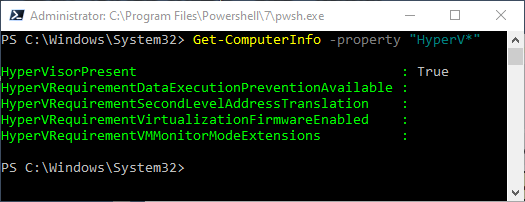
In Windows 11, open Task Manager, select the Performance tab, then select CPU . Look for the field named Virtualization. If it says Enabled , you can continue to the WSL 2 installation steps.
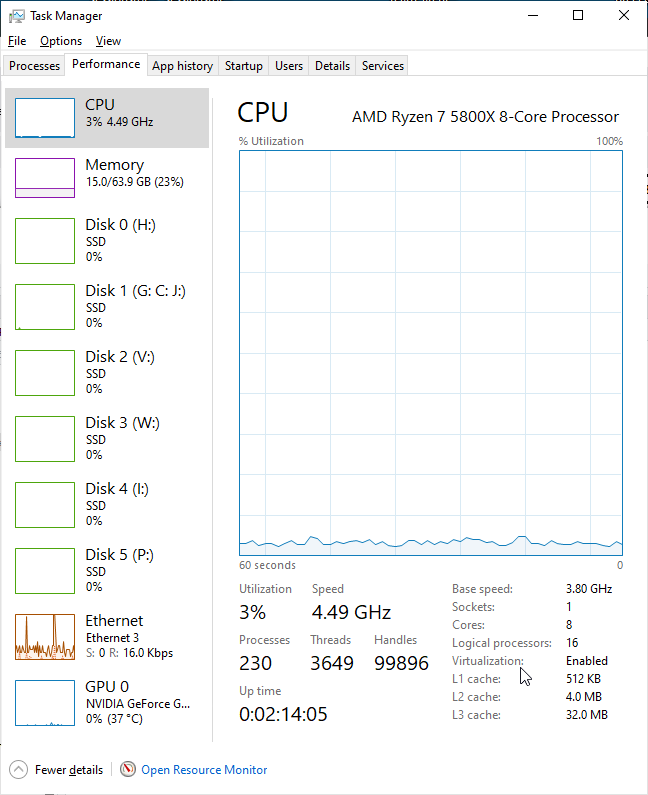
If it says Disabled, you must first enable virtualization in computer firmware settings.
3.2.2 BIOS/UEFI configure virtualization
To open the firmware settings menu, open Settings→System→Recovery. Under Advanced startup, select Restart now . After the computer restarts, choose Troubleshoot→Advanced options→UEFI Firmware Settings→Restart . This opens the BIOS/UEFI configuration screen. On some systems, also enter BIOS/UEFI by pressing a key such as F2, F10, F12, Esc, or Delete immediately after powering on the machine and the starting beep sounds.
In the BIOS/UEFI screen, locate the CPU or advanced configuration section. The virtualization option may appear under names such as Intel Virtualization Technology, VT-x , Intel VT-d, SVM Mode, or AMD-V. Enable the option, save the changes, and exit. The computer will then restart into Windows.2
2 Groovy_0, “Virtualization Option Missing in Bios,” Reddit Post, r/virtualization, January 1, 2023, https://www.reddit.com/r/virtualization/comments/100l6cb/virtualization_option_missing_in_bios/.
3.2.3 Check virtualization is on
After Windows starts again, open Task Manager→Performance→CPU once more and verify that Virtualization now shows Enabled . This confirms that the machine is ready to support WSL 2.
Do not change unrelated BIOS/UEFI settings unless understanding their purpose! Incorrect firmware changes can prevent systems from booting correctly. For this task, only enable virtualization.
If the machine blocks BIOS/UEFI changes, contact IT support (if you have one). Virtualization may be controlled by institutional policy.
3.3 Install WSL 2
3.3.1 WSL 2 installation on Windows 11
- Install
WSL:
wsl --installThis command enables the required Windows features, installs the WSL platform, and installs a Linux distribution, usually Ubuntu.3
3 “WSL2 Tutorial: The Complete Guide for Windows 10 & 11 — SitePoint,” October 4, 2024, https://www.sitepoint.com/wsl2/.
Restart the computer if Windows asks. In many cases, the installation is not complete until after a restart.
After restarting, open the installed WSL Linux distribution from the Start menu . The first launch may take a few minutes because Windows must finish preparing the Linux environment.
When prompted, create a Linux username and password. These credentials are for the Linux environment inside
WSL; they are separate from your Windows account. Make sure you record them somewhere safe.To check that installation succeeded, in PowerShell run:
wsl --statusThis shows whether WSL is installed correctly and whether version 2 is available.
- To see which Linux distributions are installed and which
WSLversion they use, run:
wsl -l -v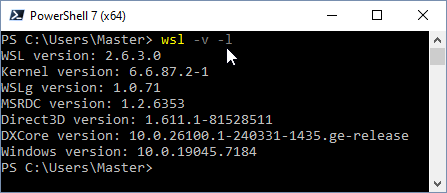
The output should show the workstation Linux distribution and indicate version 2. If a distribution shows version 1, upgrade with:
wsl --set-version <distribution-name> 2For example:
wsl --set-version Ubuntu 2- Once installation is complete, start Linux at any time by opening the installed distribution from the Start menu or by running:
wslThis opens a Linux shell inside Windows, which can be used for command-line programming, package installation, and development tools commonly used in computer science modules.
3.3.2 Why this is required
WSL 2 uses a lightweight virtualized Linux kernel. Because of this, hardware virtualization must be enabled in BIOS/UEFI.
This allows students to use a Linux command-line environment on Windows without setting up a separate dual-boot system or a full virtual machine.
In practical terms, WSL 2 is useful for programming modules that require Linux tools such as gcc, python, make, git, shell scripting, or package managers.
3.3.3 Common problems
If wsl --install fails, make sure PowerShell was opened as administrator.
If Windows reports that virtualization is required, return to BIOS/UEFI and confirm that virtualization was actually enabled and saved.
If the Linux distribution installs but does not use version 2, run wsl -l -v to confirm its current version, then use wsl --set-version to change it.
3.4 OpenSSH client
3.4.1 Check whether an SSH client exists
Run:
ssh -V
ssh-keygen -?
where.exe ssh
Interpret the result as follows:
- If
ssh -Vsucceeds, the OpenSSH client is installed and can run - If
ssh-keygen -?succeeds, the companion key-management tool is also available - If
where.exe sshreturns a path,sshis onPATH - If any of these checks fail, the workstation does not yet have a usable OpenSSH client in the current PowerShell session
Do not presume a PowerShell alias is sufficient unless the exact ssh command works. Windows documents OpenSSH Client as an optional feature, and current Windows guidance treats ssh.exe and ssh-keygen.exe as part of that client installation.4
4 robinharwood, “Get Started with OpenSSH Server for Windows,” accessed April 19, 2026, https://learn.microsoft.com/en-us/windows-server/administration/openssh/openssh_install_firstuse.
If these checks pass, keep the existing installation.
3.4.2 If the OpenSSH client is missing, install it
See Microsoft documents OpenSSH Client for Windows for installation.
A practical Windows command is:
Add-WindowsCapability -Online -Name OpenSSH.Client~~~~0.0.1.0This command must be run from an elevated PowerShell session. Microsoft documents Add-WindowsCapability as the PowerShell installation method for the Windows OpenSSH Client optional feature.
After installation, open a new PowerShell session and verify:
ssh -V
ssh-keygen -?
where.exe ssh
3.4.3 If the built-in OpenSSH client is present but too old, update it
Some Windows systems include an older in-box OpenSSH build. Microsoft documents an upgrade path from the built-in Windows feature to a newer Win32-OpenSSH release using the MSI installer published from the Win32-OpenSSH GitHub releases page.5 Microsoft’s current troubleshooting guidance describes this as the way to upgrade the in-box OpenSSH to the latest release.6
5 “Releases · PowerShell/Win32-OpenSSH,” GitHub, accessed April 19, 2026, https://github.com/PowerShell/Win32-OpenSSH/releases.
6 kaushika-msft, “Upgrade in-Box OpenSSH to the Latest OpenSSH Release - Windows Server,” accessed April 19, 2026, https://learn.microsoft.com/en-us/troubleshoot/windows-server/system-management-components/upgrade-in-box-openssh-to-latest-openssh-release.
A practical update process is:
- Download the latest appropriate OpenSSH MSI from the Win32-OpenSSH releases page
- Run the MSI installer
- Open a new PowerShell session
- Verify the installed version
Then verify:
ssh -V
where.exe ssh
Microsoft notes that the MSI installer installs OpenSSH under C:\Program Files\OpenSSH or C:\Program Files\OpenSSH-Win64, registers the components, and updates PATH.
If where.exe ssh returns multiple paths, ensure that the intended ssh.exe appears first on PATH. After installation or update, a new PowerShell session is usually sufficient. A full Windows restart is not normally required. Microsoft’s MSI guidance explicitly states that the installer updates PATH.
3.5 OpenSSL
3.5.1 Check whether OpenSSL is already installed
Run:
openssl version
where.exe openssl
Interpret the result as follows:
- If both commands succeed,
openssl.exeis already installed and available onPATH - If
openssl versionfails,openssl.exeis not installed or not usable in the current PowerShell session - If
where.exe opensslreturns no path,openssl.exeis not onPATH
If these checks pass, keep the existing installation.
3.5.2 If OpenSSL is missing, install an approved Windows package and ensure it is on PATH
This cookbook requires a working openssl.exe command on Windows.
Required outcome:
openssl.exeis presentopenssl versionsucceeds- The executable directory is on
PATH
Use an approved Windows packaging source for OpenSSL.7 The OpenSSL Project publishes official source code, release artifacts, and command documentation,8 but does not provide a single simple first-party Windows MSI workflow comparable to tools such as Git or Docker .
7 “Downloads | OpenSSL Library,” accessed May 9, 2026, https://openssl-library.org/source/.
8 “Ossl-Guide-Introduction - OpenSSL Documentation,” accessed April 19, 2026, https://docs.openssl.org/master/man7/ossl-guide-introduction/.
If the approved package supports a portable or manual layout, place openssl.exe in C:\Tools\bin and ensure that C:\Tools\bin is on the user PATH.
If the approved package is a normal Windows installer that places files under Program Files or another managed location, keep that layout and ensure the package’s executable directory is on PATH instead.
Then open a new PowerShell session and verify:
openssl version
where.exe openssl
3.5.3 If OpenSSL is installed but too old, update it
If openssl version reports an older release than your environment allows, update it using the same approved Windows packaging source that supplied the installation.
After updating, open a new PowerShell session and verify:
openssl version
where.exe openssl
If more than one openssl.exe is present on path, ensure that the intended installation is found first.
3.5.4 OpenSSL awareness
For this cookbook, be aware there is no single mandatory “official Windows installer” path. The OpenSSL Project’s own materials are centred on source releases and documentation for the openssl command-line tool rather than a first-party Windows MSI installer. That is why this section should require a working openssl.exe from an approved Windows packaging source.
Where a portable standalone binary layout is permitted, prefer C:\Tools\bin\openssl.exe. This keeps OpenSSL consistent with the cookbook convention already used for other manually managed standalone binaries.
Caution: some Windows OpenSSL packages include companion DLLs, configuration files, or other runtime files beside openssl.exe. Use the C:\Tools\bin layout only if the approved package supports that style of installation. Otherwise, keep the package’s normal installed layout and expose it through PATH.
If openssl.exe was installed correctly but is not found in the current shell, open a new PowerShell session and test again. A full Windows restart is not normally required after updating the user path; a new shell is usually sufficient.
For cookbook purposes, the operational requirement is simple: this workstation must have a working openssl.exe on path.
3.6 Traps and rabbit holes
3.6.1 OpenSSL: is it secure?
Potentially, yes — but not every OpenSSL finding means the system is immediately exploitable.
With security announcements about threatened operating systems by AI like Claude Mythos,9 during the week of writing this part; what could happen when bullying lunatics become national presidents; and when national security systems and law practitioners can no longer be trusted,10 we should wonder about the current state of digital security. OpenSSL opened the eyes somewhat: have read!11
9 “Claude Mythos Preview \ Red.anthropic.com,” accessed May 9, 2026, https://red.anthropic.com/2026/mythos-preview/.
10 “’Staggering’ I Was Not Told Mandelson Failed Vetting, Says Starmer,” BBC News, April 17, 2026, https://www.bbc.co.uk/news/articles/c17v2452vglo.
11 Idk-wtf-2022, “How Do You Patch the "OpenSSL" Vulnerability Reported by MS Defender?” Reddit Post, r/Intune, February 3, 2026, https://www.reddit.com/r/Intune/comments/1qus4qp/how_do_you_patch_the_openssl_vulnerability/.
“It’s March (2026) now and I am still seeing OpenSSL vulns in mspaint, onedrive and windows photos, aside from HP One and other driver - has anyone figured out what needs to be done to get this fixed…”
Whether or not failing to patch for OpenSSL vulnerabilities makes a system “open to attack” depends on three things:
Which specific CVE is present… OpenSSL advisories vary a lot. Some issues are only denial of service, while others can be more serious. For example, the OpenSSL project notes some recent vulnerabilities are only exploitable in narrow conditions and may result just in crashes, while others can have broader consequences.12
Whether the vulnerable code path is actually used… Many OpenSSL CVEs only affect applications that call a particular function or process specific untrusted input. OpenSSL’s own advisories repeatedly say things like “only applications that do X are affected,” which means the DLL being present on disk does not automatically mean the device is broadly exposed.
How exposed the owning application is… Risk is much higher if the vulnerable OpenSSL copy is inside an internet-facing service, mail processing component, VPN, reverse proxy, web server, or agent that handles attacker-controlled traffic. It is usually lower if the DLL is buried inside a desktop app that rarely processes untrusted input. Microsoft Defender’s remediation and recommendation model also prioritizes findings by threat and likelihood to be breached, not just presence of the component.13
12 “Vulnerabilities | OpenSSL Library,” accessed April 19, 2026, https://openssl-library.org/news/vulnerabilities/index.html.
13 limwainstein, “Remediate Vulnerabilities with Microsoft Defender Vulnerability Management,” accessed April 19, 2026, https://learn.microsoft.com/en-us/defender-vulnerability-management/tvm-remediation.
14 “Vulnerabilities | OpenSSL Library.”
A better way to phrase it in security terms is: an OpenSSL finding means the system is potentially exposed to attack under the conditions of that CVE. The need is to evaluate security in context, not just the presence of libssl or libcrypto. OpenSSL’s advisories explicitly describe those conditions, and Defender Vulnerability Management is designed to help identify and prioritize remediation of vulnerable components.14
With…
- AI like Mythos
- Low SecOps like bullies, liars and cheats at the highest of national government and the legal profession, and
- Apparently hard to (humanly) cure attack surfaces like OpenSSL
…it is important to lock down attack surfaces when constructing orchestrated systems.
The plan is to engage AI for attack surface audits later in this project when presently imminent systems become available for public use. For now, always keep an eye out for vulnerabilities in systems architecture.
3.7 Workstation essentials: summary
Ensure latest Powershell is opened in administration mode
Configure workstation BIOS for virtualization
Installing a WSL2 Linux distribution provides the necessary mechanisation for Linux-on-Windows
SSH and SSL security libraries are necessary to enable secure communication
Workstation software was checked for latest versions and correct configuration
Focus was given to potential security issues and why to lock security early instead of leaving to later
With these essentials complete, workstations now stand ready for the next step— installing and configuring critical development tools.